The HEIC Problem: Why Can't You Open Your iPhone Photos?
You transfer photos from your iPhone to your Windows PC, and nothing opens. You try to attach a photo to an email, and the website rejects it. You send a picture to a friend on Android, and they get an error.
The culprit? Your iPhone has been quietly saving every photo in a format called HEIC - and most of the digital world still can't handle it. Windows can't open it natively. Most websites reject it. Android devices struggle with it. Even some Mac apps don't support it properly.
The fix is simple: convert HEIC to JPG. This guide explains exactly what HEIC is, why Apple uses it, and every method to convert your photos - including the fastest option that takes literally 3 seconds.
What is HEIC? (And Why Does Apple Use It?)
HEIC stands for High Efficiency Image Container. It's a file format based on the HEVC (H.265) video codec that Apple adopted as the default photo format on iPhones and iPads starting with iOS 11 in 2017.
Why Apple Chose HEIC Over JPEG
Apple didn't switch formats to annoy you. HEIC offers genuine technical advantages:
- 50% smaller file size - a HEIC photo takes roughly half the storage of an equivalent JPEG at the same visual quality. For a 256GB iPhone with tens of thousands of photos, that's a massive savings.
- Better image quality - at the same file size, HEIC preserves more detail, fewer compression artifacts, and smoother gradients than JPEG.
- 16-bit color depth - HEIC supports 16-bit color (vs JPEG's 8-bit), capturing wider color ranges and subtler tones.
- Live Photos and bursts - HEIC can store image sequences (Live Photos) and burst shots in a single file.
- Transparency support - unlike JPEG, HEIC supports alpha channels (transparency) for layered images.
- Non-destructive edits - editing metadata and transformations can be stored without re-encoding the image.
In short, HEIC is technically superior to JPEG in almost every way. The problem is that the rest of the world hasn't caught up.
The Compatibility Problem
Despite HEIC being nearly a decade old, support remains frustratingly incomplete:
| Platform / App | HEIC Support | Notes |
|---|---|---|
| iPhone / iPad | ✅ Full | Native - this is where HEIC files come from |
| macOS | ✅ Full | Supported since macOS High Sierra (2017) |
| Windows 11 | ⚠️ Partial | Requires free HEIF extension + paid HEVC codec ($0.99) |
| Windows 10 | ⚠️ Partial | Same codec requirement, less reliable support |
| Android | ⚠️ Varies | Android 10+ has partial support; older versions cannot open HEIC |
| Chrome | ❌ No | Cannot display HEIC images |
| Firefox | ❌ No | Cannot display HEIC images |
| Safari | ✅ Yes | Full support on macOS and iOS |
| WordPress | ❌ No | Rejects HEIC uploads by default |
| Gmail / Outlook | ⚠️ Partial | Can attach but recipients may not be able to preview |
| Facebook / Instagram | ✅ Yes | Accepts HEIC uploads, converts to JPEG internally |
| Canva / Figma | ❌ No | Cannot import HEIC files |
This is why you need to convert. JPG is universally supported - every device, every browser, every website, every app on the planet can open a JPG file.
Method 1: Convert HEIC to JPG Online (Fastest)
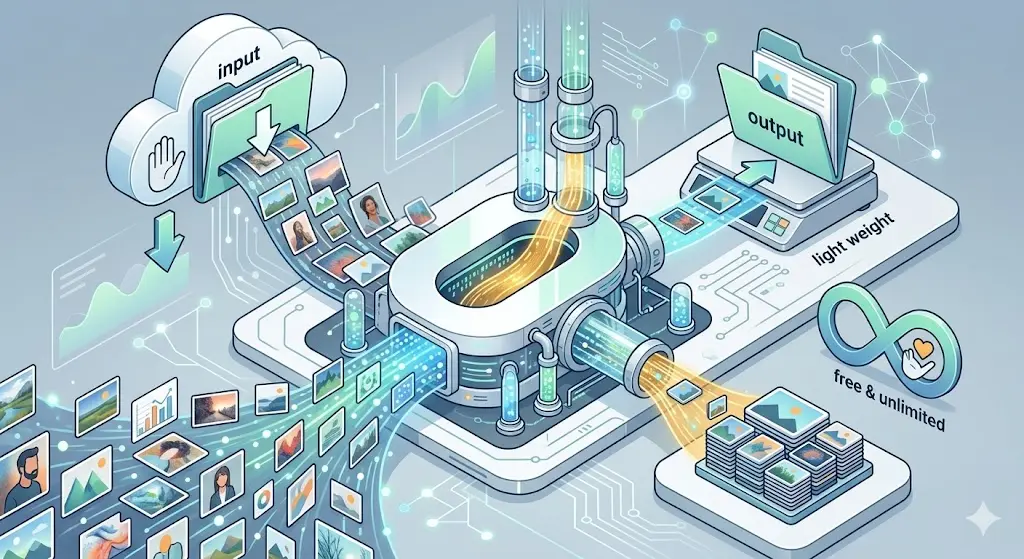
The fastest and most private way to convert HEIC files is using a browser-based tool that processes everything locally - no uploads, no accounts, no app installs.
Step-by-Step with ZeroPNG
- Go to ZeroPNG HEIC to JPG Converter
- Drag and drop your .heic files into the drop zone (or click to browse). You can add dozens of files at once.
- Choose your output format: JPG (recommended for sharing) or PNG (lossless quality).
- Adjust the quality slider if needed - 92% is the default and recommended setting.
- Click "Convert All" to instantly convert all files.
- Click "Download All (ZIP)" to get every converted photo in a single archive.
Why This Method Beats Everything Else
- 100% client-side - your photos never leave your device. Everything runs in JavaScript inside your browser.
- No app to install - works instantly in any modern browser. No download, no setup.
- No account or signup - just open the page and drop your files.
- Unlimited batch conversion - convert hundreds of HEIC photos at once. No limits, no premium tier.
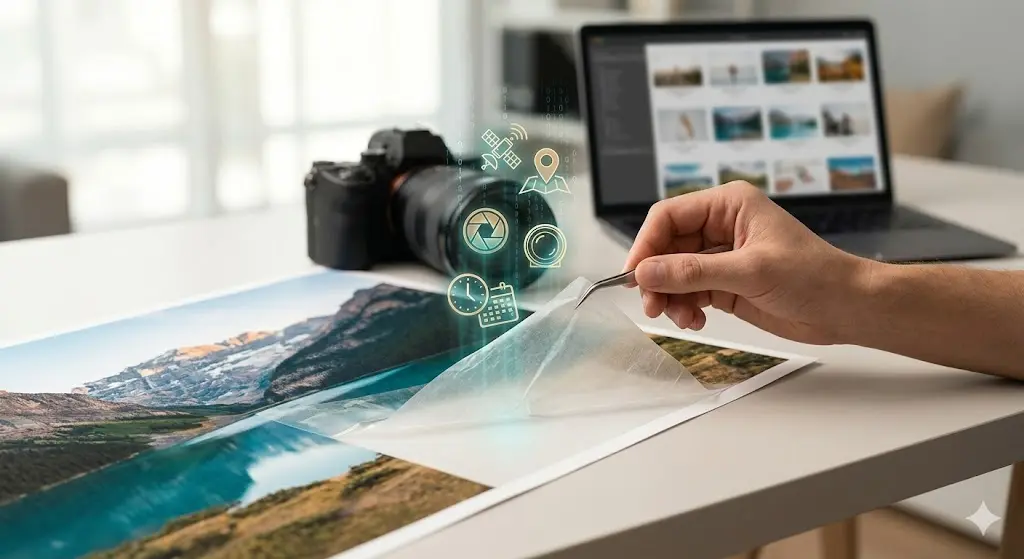
- Automatic EXIF stripping - the conversion process removes all hidden metadata (GPS, camera info, timestamps) from the output files.
- Works on any device - desktop, tablet, or phone. Convert HEIC files on your Android or Windows device too.
⚠️ Warning about other online converters: Most "free HEIC converters" (CloudConvert, Zamzar, etc.) require you to upload your personal iPhone photos to their servers, often with file size limits and conversion caps on their free tier. ZeroPNG processes everything locally with zero restrictions.
Method 2: Convert HEIC to JPG on iPhone
If you want to prevent the HEIC problem entirely on future photos, you can change your iPhone's camera settings.
Change Camera Format to JPEG
- Open Settings.
- Scroll down to Camera.
- Tap Formats.
- Select "Most Compatible" instead of "High Efficiency".
Your iPhone will now save all new photos as JPEG instead of HEIC.
Trade-offs
- Photos will take roughly 2x more storage on your phone.
- You lose some advanced features like Live Photo editing in certain apps.
- This only affects new photos - existing HEIC photos in your camera roll stay as HEIC.
Auto-Convert When Transferring
If you'd rather keep HEIC on your phone (for the storage savings) but want JPG when transferring to a computer:
- Go to Settings → Photos.
- Under "Transfer to Mac or PC", select "Automatic".
Your iPhone will automatically convert HEIC to JPEG when transferring via USB cable. However, this does not apply to AirDrop, iCloud, email, or messaging - those still send HEIC.
Method 3: Open HEIC on Windows
Windows doesn't natively support HEIC, but Microsoft offers an extension:
Install HEIF Extensions
- Open the Microsoft Store.
- Search for "HEIF Image Extensions" and install it (free).
- You may also need "HEVC Video Extensions" - this one costs $0.99.
- After installing, Windows Photos and other apps should be able to open .heic files.
Issues with This Approach
- The HEVC codec costs money, which feels absurd for opening photos.
- Support is inconsistent - some apps still can't open HEIC even with the extensions installed.
- Doesn't help with uploading to websites that reject HEIC.
- Doesn't convert the files - they remain as .heic, so you still can't share them universally.
For a permanent solution, converting to JPG is always more reliable than installing codecs.
Method 4: Convert HEIC to JPG on Mac
macOS has built-in HEIC support, making conversion straightforward.
Using Preview
- Open the .heic file in Preview.
- Go to File → Export.
- Choose JPEG from the format dropdown.
- Adjust the quality slider and click Save.
Using Automator (Batch)
For converting many files at once on Mac:
- Open Automator and create a new Quick Action.
- Add "Change Type of Images" action.
- Set the output format to JPEG.
- Save the workflow. You can now right-click any batch of HEIC files and convert them all at once.
Using Terminal (sips)
macOS includes the sips command-line tool:
- Single file:
sips -s format jpeg photo.heic --out photo.jpg - Batch convert a folder:
for f in *.heic; do sips -s format jpeg "$f" --out "${f%.heic}.jpg"; done
Method 5: Convert HEIC on Android
If someone sends you HEIC files and you're on Android:
- Android 10+ can open many HEIC files natively in Google Photos, but not all apps support it.
- Older Android versions cannot open HEIC at all.
- The simplest fix: open ZeroPNG's HEIC converter in Chrome on your phone, drop the files in, and download the JPGs.
HEIC vs JPG vs PNG: Which Should You Convert To?
When converting from HEIC, you'll typically choose between JPG and PNG. Here's when to use each:
| Feature | HEIC | JPG | PNG |
|---|---|---|---|
| File Size | Smallest | Small-Medium | Large |
| Quality | Excellent | Very Good (lossy) | Perfect (lossless) |
| Compatibility | Apple only | Universal | Universal |
| Transparency | Yes | No | Yes |
| Best For | Storing on iPhone | Sharing, web, email | Editing, archiving |
For most people: Convert HEIC to JPG at 90-95% quality. The files are compact, universally compatible, and visually indistinguishable from the original.
For photographers and designers: Convert HEIC to PNG when you need lossless quality for professional editing, printing, or archiving.
Does Converting HEIC to JPG Lose Quality?
This is the most common concern. Here's the reality:
- At 92% quality (ZeroPNG's default), the visual difference between the HEIC original and the JPG output is imperceptible to the human eye. You would need to zoom in to 400%+ and overlay the pixels to spot any difference.
- At 100% quality, JPG files are essentially lossless but significantly larger than the HEIC original.
- Converting HEIC to PNG is truly lossless - zero quality loss whatsoever, but files will be 3-5x larger than the HEIC original.
For everyday use - sharing on social media, emailing to family, uploading to websites - JPG at 92% is perfect. The quality difference is academic, not visible.
Bonus: What Happens to EXIF Data When You Convert?
iPhone HEIC files contain extensive EXIF metadata: GPS coordinates, timestamps, camera settings, and device serial numbers. This hidden data is a serious privacy concern.
When you convert HEIC to JPG using ZeroPNG, the conversion process automatically strips all EXIF metadata from the output file. Your converted JPGs are clean - no hidden GPS, no device fingerprints, no personal data. It's a free privacy bonus built into the conversion.
If you have non-HEIC photos that need metadata removal, use our dedicated EXIF Metadata Remover.
Frequently Asked Questions
Can I convert HEIC to JPG without installing anything?
Yes. ZeroPNG's HEIC to JPG converter runs entirely in your web browser. No app download, no software installation, no signup. Just open the page and drop your files.
Why does my iPhone save photos as HEIC?
Apple chose HEIC as the default because it saves roughly 50% storage compared to JPEG at the same quality. On a phone with limited storage, this means you can take twice as many photos before running out of space.
Can I batch convert hundreds of HEIC files at once?
Yes. With ZeroPNG, you can drop dozens or hundreds of HEIC files at once. They're all converted simultaneously in your browser, and you can download everything as a single ZIP archive.
Is HEIC the same as HEIF?
Almost. HEIF (High Efficiency Image Format) is the broader standard. HEIC is a specific type of HEIF that uses HEVC (H.265) compression - this is what Apple uses. In practice, .heic and .heif files are interchangeable and ZeroPNG handles both.
Will Apple ever switch back to JPEG?
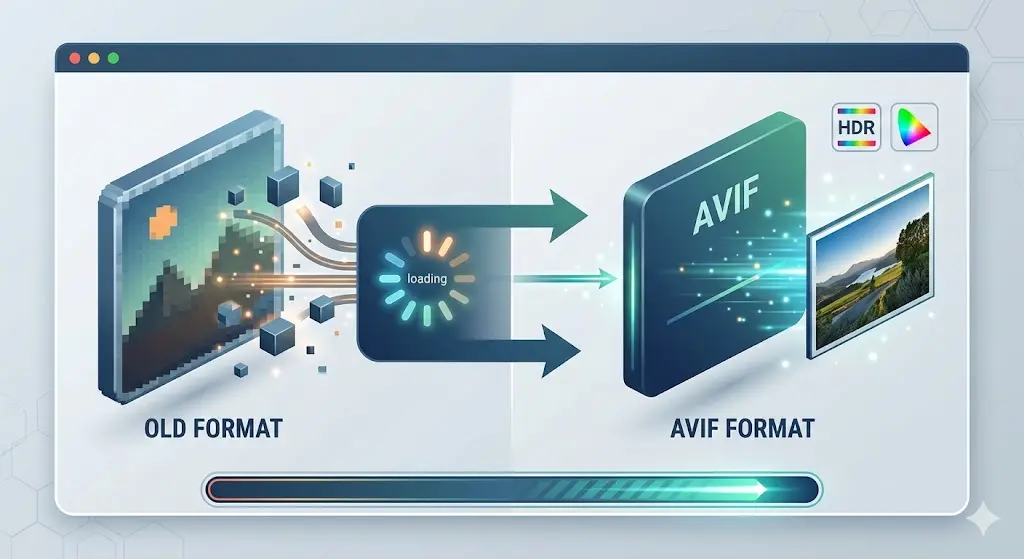
Unlikely. HEIC is technically superior and Apple has no incentive to switch back. The trend is actually moving further forward - AVIF and JPEG XL are even newer formats gaining traction. The best strategy is to keep your originals as HEIC and convert to JPG only when you need to share.
Can I convert HEIC to WebP or AVIF instead of JPG?
For HEIC files, ZeroPNG converts to JPG or PNG. If you need WebP or AVIF, first convert HEIC to JPG, then use our Image Converter to convert JPG to WebP or AVIF for even better web performance.
Convert HEIC to JPG - Free, Instant, Private
Drop your iPhone HEIC photos into ZeroPNG's converter. Batch convert to JPG or PNG in seconds, download as ZIP. 100% browser-based, zero uploads, unlimited files.
Convert HEIC to JPG Now