The Common Mistake: Why Simple Blurs Fail
Imagine you need to share a screenshot of a dashboard or invoice. It has an API key, a customer email, or a credit card number. To hide those details, you open your phone photo editor and draw a messy translucent line over them. Or you use a basic blur tool. You save it and send it off.
This is a huge privacy risk. Here is why: standard blurs and pixel filters do not remove the pixels from your file. They just scramble the math. With modern image tools, anyone can adjust the contrast, brightness, and sharpness of your photo to make the blurred text readable again. In some cases, specialized scripts can undo pixelation by guessing the characters underneath.
If you scribble over text using a translucent markup brush, the original pixels are still there. Anyone with a basic photo editor can raise the exposure slider and see right through your scribble. You think your data is hidden, but it is actually visible to anyone who looks closely.
What is Safe Redaction?
True redaction means deleting the sensitive pixels completely and replacing them. It is not about making them hard to read. It is about making sure the original data no longer exists in the image file.
A secure image redactor does three things:
- Removes the raw pixel data: It takes the selected area and deletes the color values of those pixels.
- Replaces it with a solid color: It draws a solid black, white, or colored box over the area. This box contains no trace of the underlying text.
- Flattens the image layers: It merges the solid box into the background image so they become a single layer. This prevents anyone from extracting the original layer or undoing the change.
How to Safely Censor Images in Your Browser
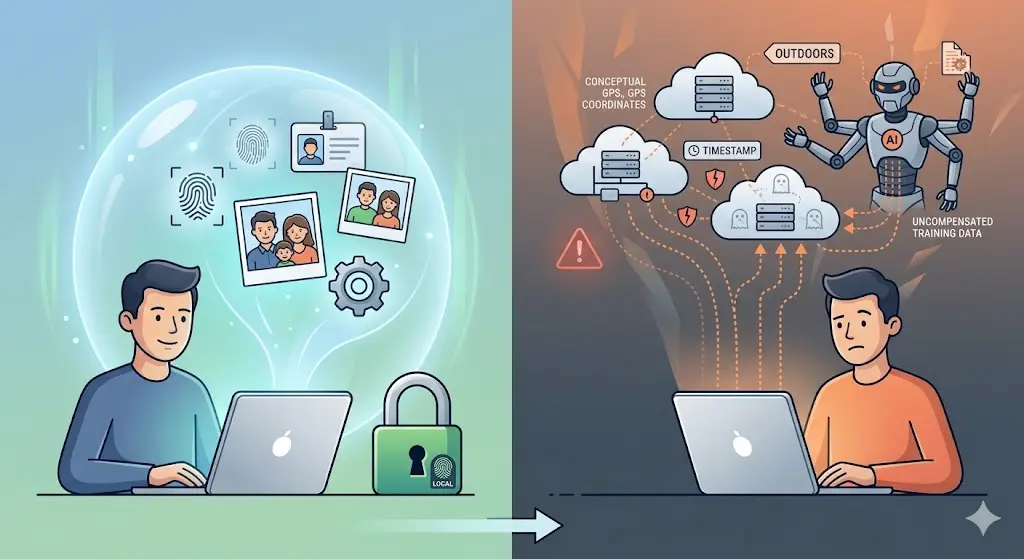
You do not need to install heavy design programs to censor your photos safely. You can do it directly in your web browser. However, you should avoid uploading your sensitive screenshots to random online servers. Uploading an ID card or bank statement to a backend database just to blur a number defeats the purpose of privacy.
This is where local browser processing comes in. By using tools that run entirely client-side, your files never leave your device. Here is the safest workflow to redact your images:
Step 1: Choose a local, privacy-first tool
Use a tool like the Censor & Blur tool on ZeroPNG. It processes your files directly in your browser memory. This means your images are never sent to the internet, and no server gets a copy of your private data.
Step 2: Upload your image
Drag and drop your JPG, PNG, or WebP photo into the editor. Since the tool runs offline, the loading is instant, and there are no file queues.
Step 3: Select your redaction style
For sensitive PII (Personally Identifiable Information) like credit card numbers, passwords, and addresses, always use the Solid Blackout option. Do not use pixelation or blur filters for high-security details. A solid blackout box replaces the pixels entirely, leaving zero mathematical trace.
Step 4: Draw over the sensitive areas
Click and drag to draw boxes over any text, faces, or numbers you want to hide. Make sure the boxes cover the target elements fully with a safe margin on all sides.
Step 5: Export the flattened file
Click download. The tool flattens the solid shapes directly into the image canvas and outputs a clean, secure file. The original text is gone forever and cannot be recovered by any photo editor.
Best Practices for Redacting Images Safely
- Avoid phone markup brushes: Most default markup tools on mobile devices use brush paths with transparency. Always choose a solid rectangle shape instead of a finger-drawn scribble.
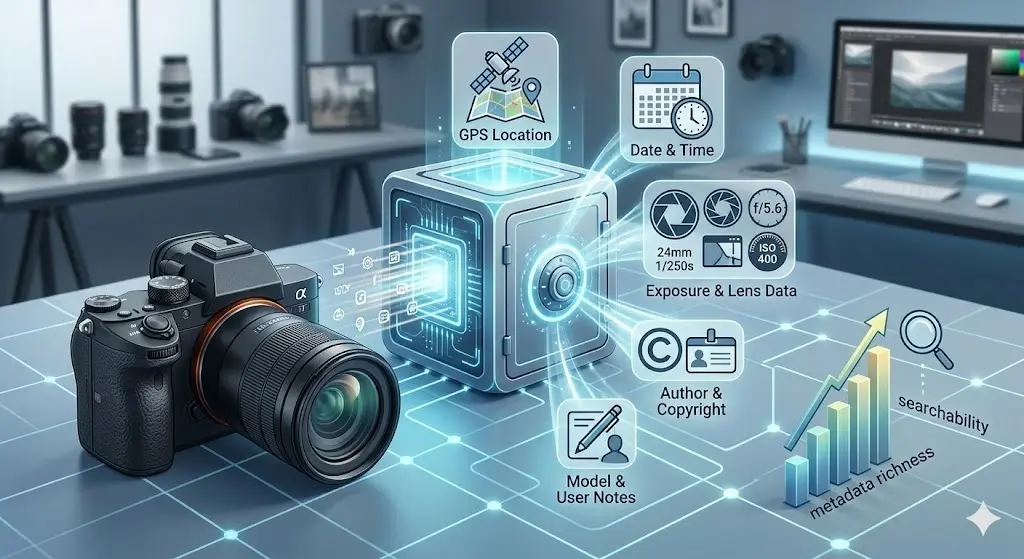
- Check your metadata: Redacting the visual pixels does not remove the hidden data inside the file. Before sharing, use the Remove EXIF Data tool to strip GPS location coordinates, camera models, and creation timestamps from your photos.
- Use solid colors over blur: We cannot say this enough. Blurs are great for hiding background elements or faces in casual photos, but solid colored boxes are the only safe option for text, numbers, and codes.
- Verify the offline capability: Before trusting any web tool with sensitive documents, test if it works offline. Turn off your internet connection and try processing a file. If it fails, it means your data is being sent to a server. ZeroPNG tools work fully offline because all processing stays on your machine.
Redact Your Images Safely Now, Free
No uploads, no sign-up, no watermarks. ZeroPNG's Censor & Blur tool runs entirely locally in your web browser. Drag in an image and blackout or pixelate sensitive information securely in seconds.
Redact an Image Free