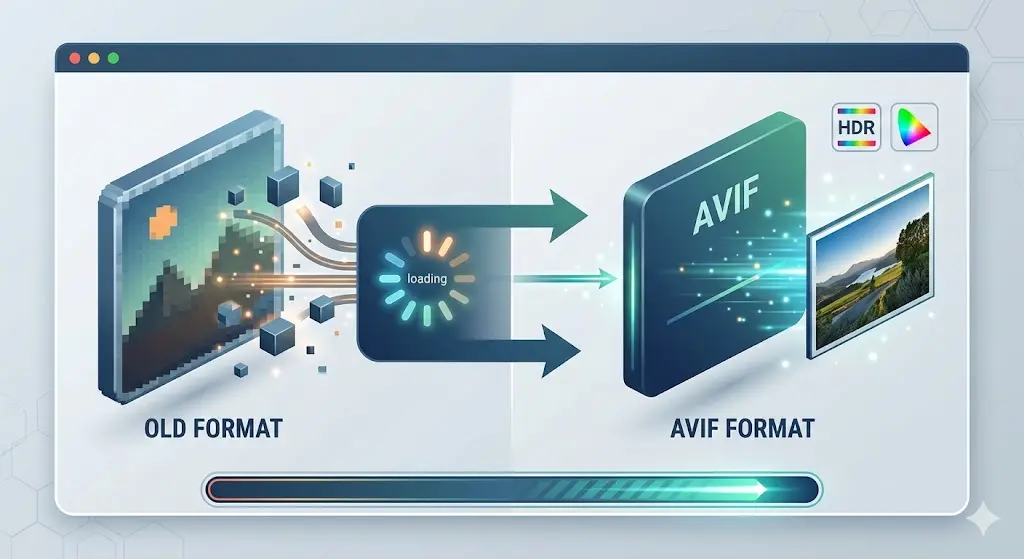
AVIF is the smallest mainstream image format on the web right now. A photo sitting at 400 KB as a JPEG will often land somewhere near 200 to 280 KB as an AVIF, with no difference you can spot at normal viewing size. That's the 30 to 50 percent saving everyone quotes, and it's real, which is why every page speed report you've run has probably told you to convert to AVIF.
The advice is mostly right. It's also handed out too freely. There are jobs where AVIF is the wrong call, and it's worth knowing which ones before you re-encode your whole media library.
What AVIF actually is, briefly
AVIF is built on AV1, a video codec. A codec is just the method used to squeeze video down to a size worth sending over the internet, and AV1 is the modern royalty-free one that Netflix, YouTube, and most streaming platforms lean on. An AVIF image is basically a single frame of AV1 video wrapped in an image file. Video compression has had vastly more money and research poured into it than still image compression ever got, so borrowing it pays off.
The short version: files typically 30 to 50 percent smaller than JPEG at the same visual quality, proper transparency support (JPEG never had any), and roughly 92 percent or more of browsers in use today can display it, including Chrome, Edge, Firefox, and Safari 16 and up. If you want the deeper technical explanation, our complete guide to AVIF goes much further than this post will.
This one is about the doing.
How to convert to AVIF
- Open the AVIF Converter.
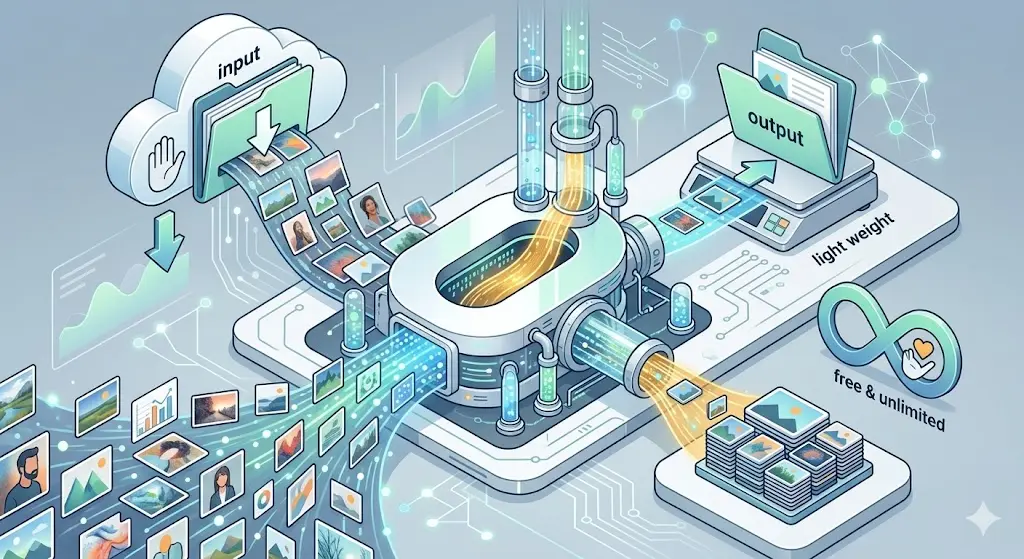
- Drop your images in. JPG, PNG, WebP and more all work, and you can throw in a whole batch at once.
- Set the quality slider. It starts at 50, which sounds low and isn't. More on that below.
- Turn on Lossless only if you truly need every pixel preserved. It produces much bigger files.
- Download files one at a time, or grab the entire batch as a ZIP.
Nothing is uploaded. Conversion happens on your own device, so the speed depends on your laptop rather than someone's server queue, and your photos never leave the machine they're on.
Which quality number to pick
AVIF's quality scale doesn't line up with JPEG's, and that catches people out. A JPEG at quality 50 looks rough. An AVIF at quality 50 usually looks fine.
- Around 50: the sweet spot for most web photos. Big savings, very hard to fault by eye.
- 60 to 75: hero images, product shots, anything a customer will study up close.
- 80 and above: portfolio work where near-perfect matters. Savings drop off fast past this point.
- Under 40: thumbnails and background images where nobody is inspecting detail.
Convert one representative image first, open it at full size, and judge it. Then run the batch. Picking a number blind for 200 files and finding out afterwards that the skin tones went blotchy is a rough afternoon.
jpg to avif versus png to avif
Converting jpg to avif is the standard case: photographs, biggest savings. One caveat, your JPEG has already been compressed once, so you're re-compressing something that already lost detail. It still works well. It just won't quite match converting from the original camera file.
Converting png to avif splits in two. If the PNG is a photograph or a busy screenshot, AVIF will flatten it, often by 80 percent or more, because PNG is genuinely terrible at storing photos. If the PNG is a flat graphic, a logo, or a UI element with a few solid colors and crisp edges, leave it alone. PNG is already efficient at that job, and AVIF's lossy compression can soften sharp edges in a way you'll actually see. Transparency does survive the conversion, so a cutout PNG keeps its transparent background.
Why this works in Safari and Firefox too
Short detour, because it explains why some browser-based converters mysteriously fail for half their users.
Browsers have a built-in drawing surface called the Canvas API, and it can export images in a few formats. Chrome and Edge can export AVIF through it. Firefox and Safari display AVIF perfectly well but cannot create it that way. So a converter built on Canvas alone quietly breaks for anyone who isn't on Chrome.
ZeroPNG doesn't depend on that. It runs libavif, the reference AVIF encoder, compiled to WebAssembly. WebAssembly is a way of running fast compiled code, the kind normally written in C, directly inside a browser tab. Same encoder in every browser, same output, no surprises.
When you shouldn't convert to AVIF
When the batch is huge and your time isn't free
AVIF encoding is slow. Not "a bit slower than JPEG" slow, more like several times slower, because AV1 was designed to squeeze hard rather than finish quickly. Twenty images and you won't notice. Two thousand on a laptop and you've handed over an evening to save maybe another 15 percent over WebP. WebP encodes in a fraction of the time and gets most of the way there. On a big batch that's a trade I'd take without much agonizing. Our WebP vs AVIF vs JPEG comparison has the side-by-side if you want to see what you'd be giving up.
When the images are tiny
Every AVIF carries some structural overhead in its header. On a 2 MB photo that's a rounding error. On a 3 KB icon it can be most of the file, and the AVIF sometimes comes out bigger than the PNG did. Small icons, sprites, and simple interface graphics are usually better left as PNG or SVG.
When something down the line won't accept it
Email clients are the classic trap. Plenty of them still won't render AVIF, and a broken image box in a newsletter is far worse than a slightly heavier JPEG. Same story with some CMS uploaders, older Android phones, print shops, and desktop apps that never bothered adding support. Check that whatever consumes the files can read them before you convert the folder.
When you're storing masters
Lossy AVIF, like lossy JPEG, discards information permanently. Keep your originals somewhere safe and convert copies. Obvious, and people still overwrite their only version.
The fallback trick, in plain terms
For that last slice of browsers, you don't actually have to choose. HTML has a <picture> element that lets you list several versions of one image. The browser walks the list, takes the first format it understands, and ignores everything else.
<picture>
  <source srcset="photo.avif" type="image/avif">
  <source srcset="photo.webp" type="image/webp">
  <img src="photo.jpg" alt="Description">
</picture>
A modern browser grabs the AVIF. An old one skips past it, tries WebP, and settles for the JPEG if it has to. Only one file ever downloads, so nobody pays for the spares. Four extra lines, and the compatibility argument disappears.
So should you convert everything?
No, and I'd push back on anyone who tells you otherwise. Convert your photographs, your hero images, and your product shots, because that's where AVIF's advantage is dramatic and the file sizes are big enough to matter. Leave your icons and flat graphics as PNG or SVG. Keep a fallback if your audience includes email or older devices. And if you've got a thousand images and a deadline, WebP is not a failure, it's a reasonable answer.
Already sitting on AVIF files you need in another format? The Image Converter goes the other way, back to JPEG, PNG, or WebP. And if you're curious what comes after AVIF, JPEG XL is the format worth watching.
Frequently Asked Questions
Is AVIF better than WebP?
For file size, usually yes, roughly 20 percent smaller at comparable quality. For encoding speed, no, WebP is far quicker. For browser support, WebP is still slightly ahead. Pick AVIF when the saving matters most, WebP when speed or maximum reach matters most.
Will converting to AVIF lose quality?
At the default quality settings, not in any way you'll notice on screen. It is lossy compression, so information is discarded, but AVIF discards it far more cleverly than JPEG does. Flip on Lossless if you need a pixel-identical result.
Can I convert AVIF back to JPEG or PNG?
Yes, with the Image Converter. Bear in mind you can't recover detail the lossy conversion already threw away, so converting back gets you a working JPEG, not your original file.
Does AVIF work on iPhone?
Safari has displayed AVIF since version 16, so any iPhone running iOS 16 or newer handles it fine. Much older devices stuck on earlier iOS versions won't, which is what the <picture> fallback is for.
Why is my AVIF bigger than the original?
Almost always because the source was tiny, or because it was a flat graphic with few colors. PNG handles small, simple, sharp-edged images very efficiently, and AVIF's overhead can outweigh its compression on those. Keep the PNG.
Are my images uploaded when I convert?
No. Every file is decoded and re-encoded inside your browser using WebAssembly, so nothing reaches a server. You can disconnect from the internet after the page loads and the converter keeps working.
Convert to AVIF, Free, In Your Browser
Drop in your JPG, PNG, or WebP files, set the quality, and download AVIF versions in seconds. Runs on libavif compiled to WebAssembly, so it behaves the same in every browser and never uploads a thing.
Convert Images to AVIF Free