You have a stack of JPGs and you need them as one PDF. A signed form, both sides of an ID, a few photos of a damaged wall for a claim. The task sounds trivial, and it is. The part worth getting right is where that conversion happens, because converting images to PDF almost always means handing your files to a server you know nothing about.
It doesn't have to. A browser can build a PDF on its own, on your device, with nothing sent anywhere. That's the method this guide covers, and it's the part most "JPG to PDF" pages skip.
The thing most "JPG to PDF" pages quietly ignore
Search jpg to pdf and you'll get a wall of tools that all work the same way. You drop your file in. It travels across the internet to a server you've never heard of, in a country you didn't pick. The server builds the PDF and sends it back. Handy. Also a little reckless when the "image" is your passport or a medical claim.
Here's the rule worth defending: a document you'd cover with your hand at a coffee shop should never be uploaded to a free web tool just to become a PDF. Making a PDF is basic file plumbing. Your browser can do it on its own. There's no reason the job needs a stranger's hard drive in the middle.
That's why the Images to PDF tool on ZeroPNG runs the entire conversion in your browser. Your JPGs, PNGs, WebP, and AVIF files get read into memory, arranged, and written into a PDF right there on your device. Network requests during the build: none. You can literally turn off your Wi-Fi and it still works.
How to convert images to PDF
Here's the short version:
- Open the Images to PDF tool. Nothing to install, no account.
- Drag your JPG, PNG, WebP, or AVIF files onto the drop area, or pick them straight from your phone's camera roll.
- Drag the thumbnails into the order you want them to show up as pages.
- Choose a page size (A4, Letter, or Fit) and a margin.
- Click Create PDF and download the file.
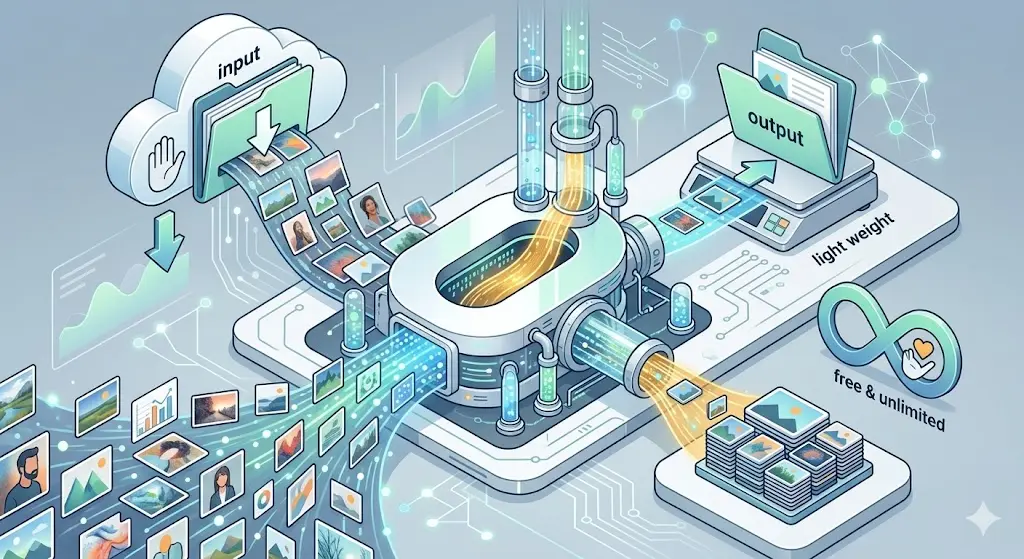
One image or forty, the flow is identical. A single receipt becomes a one-page PDF. Drop in a stack and you get one document with a page per image. No "20 files max" wall, no queue, no watermark stamped across the corner.
Putting several images into one PDF
This is the most common request: several photos combined into one file, not zipped, not sent one at a time. Select them all at once, or add them in a few batches. They pile into a single list. Hit Create PDF and each image becomes its own page, in the order shown, top to bottom. Six photos in, six pages out.
Reordering the pages before you export
Phones love to name files in an order that makes no sense. IMG_4471 before IMG_4468, that kind of thing. So drag the rows. Grab a thumbnail, slide it up or down, drop it where it belongs. Front of the ID first, back second, form third. What you see in the list is the exact page order you'll get. Fix it before you build, not after.
Page size, margins, and the orientation question
Three page settings cover almost everything, and the differences are small but real.
| Setting | What it does | Reach for it when |
|---|---|---|
| A4 | Standard 595 × 842 pt page; your image is scaled to fit inside the margin | Forms, contracts, anything headed for an office printer outside the US |
| Letter | US 612 × 792 pt page (8.5 × 11 in) | US paperwork, tax stuff, anything you'll print stateside |
| Fit | Page sized to each image, so there's no empty border around it | Screenshots, receipts, and photos you'll only ever read on a screen |
Margins run from None to Large. For a printed form, a Small margin keeps the content off the paper's edge. For screenshots, None lets the page hug the image.
Then there's orientation. There's no portrait or landscape toggle, and that's deliberate. The tool reads each image and turns the page to match. A wide screenshot lands on a landscape page. A tall photo of a form stays upright. Mix both in one document and every page does the sensible thing on its own. It's the right default; hand-flipping pages in other apps is wasted effort.
Why "no upload" is more than a nice-to-have
Think about what people actually turn into PDFs. Passports for a visa application. A lease. Insurance cards, front and back, for a clinic that only accepts one file. Pay stubs for a loan. Receipts for an expense report. This is some of the most sensitive paper in your life, and the convenient move is to hand a picture of it to a free website.
The moment a file leaves your device, you're trusting a promise. "We delete uploads after an hour." Maybe. You can't check. You can't see their logs, their backups, or who on their team can open the temp folder. When the conversion happens in your own browser instead, there's nothing to trust and nothing to delete. The file was never anywhere but with you.
One catch worth knowing: a photo can carry hidden metadata. GPS coordinates, the exact time, your phone model, all baked into the file by your camera. Building a PDF locally keeps that data off any server, but it can still ride along inside the images. If you're about to send a scan somewhere public, run the originals through Remove EXIF Data first so the location tag doesn't tag along. This piece on EXIF data covers what's actually buried in those files.
Two things worth doing before you hit Create
First, size. Modern phone cameras shoot big. Six photos at 4MB each and your PDF can sail past 20MB, which is exactly the size some upload forms refuse. Run the images through the image compressor first and that same document can land under 3MB with no visible drop in quality. The recipient can actually open it, and it still reads fine on paper.
Second, cropping. A form photographed flat on a desk catches the desk too, the clutter around the edges. Trim it off with the image cropper before building the PDF and each page looks like a scan instead of a snapshot. Small effort, clear payoff in how the final file reads.
Frequently Asked Questions
How do I convert a single JPG to PDF?
Open the Images to PDF tool, drag your JPG onto the drop area, pick a page size, and click Create PDF. You get a one-page PDF you can download right away. It works the same for PNG, WebP, and AVIF files.
Can I combine several images into one PDF?
Yes. Add as many images as you like, in one selection or several batches. Each image becomes its own page in a single PDF, in the order you arrange them. There's no fixed cap; the real limit is your device's memory, so keeping very large batches under a few hundred high-resolution files avoids straining the browser tab.
Can I reorder the pages before creating the PDF?
Yes. After you add your images, drag the thumbnails up or down to set the page order. You can also remove any image you added by mistake. The order in the list is the order in the finished PDF.
Should I pick A4 or Letter?
Use Letter (8.5 × 11 in) for US paperwork and A4 for most of the rest of the world. If the PDF is only for viewing on a screen and you don't want borders, choose Fit, which sizes each page to its image. When in doubt for a printed form, A4 or Letter with a small margin is the safe call.
Are my images uploaded to a server to make the PDF?
No. The PDF is built entirely in your browser on your own device. Your images are never sent anywhere, which makes this a safe way to turn IDs, contracts, receipts, and medical scans into a PDF. You can even do it with your internet disconnected.
Will the PDF keep the location data from my photos?
Making the PDF locally keeps that data off any server, but EXIF metadata like GPS coordinates can still sit inside the source images. If the file is headed somewhere public, strip it first with Remove EXIF Data, then build your PDF.
Convert Your Images to PDF, Free, In Your Browser
No uploads, no sign-up, no watermarks, no file limits. ZeroPNG's Images to PDF tool runs entirely on your device. Drop in your JPG, PNG, WebP, or AVIF files, reorder the pages, and download one clean PDF in seconds.
Convert Images to PDF Free